
 April 21, 2026
 Canadian Hosting, Hosting, Managed WordPress Hosting Canada, Web Hosting Canada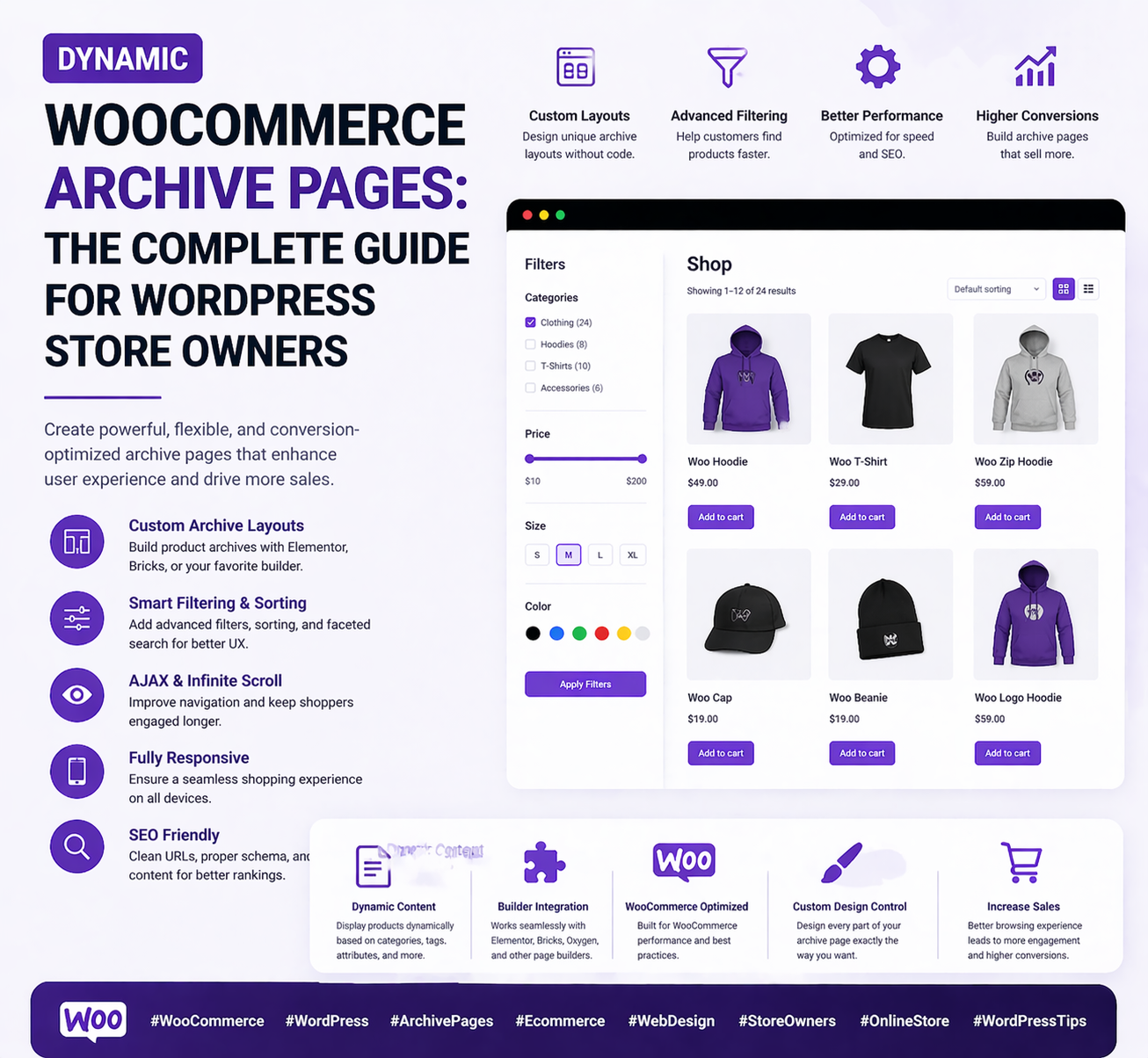
If you run a WooCommerce store, your product archive pages — the main shop page, category pages, tag pages, and attribute pages — are among the most visited and conversion-critical pages on your entire website. These are the pages where shoppers browse your inventory, discover products, and make the decision to add something to their cart. Yet for many store owners, archive pages are an afterthought: a plain, default grid of product thumbnails with minimal design, zero brand personality, and no strategic layout thinking.
At 4GoodHosting, we power hundreds of WooCommerce stores through our managed WordPress Hosting platform, hosted in Canadian Data Centers built for the performance demands of e-commerce. We’ve seen first-hand how dramatically a well-designed, dynamic WooCommerce archive page can impact conversion rates, average session duration, and revenue per visitor compared to a generic default layout.
In this comprehensive guide, we’ll explain exactly what dynamic WooCommerce archive pages are, why they matter for your store’s success, and how to build them step by step using WordPress page builder tools and WooCommerce’s own template system. Whether you’re redesigning an existing store or building a new one from scratch, this guide gives you everything you need to transform your archive pages from overlooked utilities into powerful, conversion-optimized shopping experiences.
In WordPress, an archive page is any page that automatically aggregates and displays a collection of posts or post types based on a shared attribute — a category, tag, date, or custom taxonomy. WooCommerce extends this system for products. A WooCommerce archive page is any page that automatically displays a collection of products based on a shared attribute:
By default, WooCommerce generates these pages automatically using built-in templates. The default layout is functional but generic: a header, a product grid showing thumbnail, title, price, and an add-to-cart button, and pagination at the bottom. The design is identical across every category page regardless of what those categories contain or how you want to present them.
Dynamic archive pages change this entirely. Instead of a single static template applied to every archive, you create custom layouts for specific categories, apply unique hero sections to your most important product collections, add dynamic content that pulls live data from WooCommerce, and deliver a tailored shopping experience that reflects your brand and your products.
When a shopper lands on your “Summer Collection” category page, the visual design is the first signal they receive about the quality and character of the products within. A thoughtfully designed archive page — with a branded hero banner, curated product layout, and intentional use of imagery and typography — immediately communicates professionalism and builds purchase confidence. A plain grid of thumbnails communicates nothing.
Product category pages are among the highest-value SEO targets in any WooCommerce store. Shoppers commonly search for category-level terms like “women’s running shoes Canada”, “organic coffee online”, or “handmade leather wallets” — not just specific product names. A well-designed, content-rich category page with a unique hero section, introductory copy, and an optimized layout gives you far more SEO content and real estate than a bare product grid. Dynamic archive pages make it easy to add unique, keyword-rich content to every category without building individual static pages.
Not all product categories are equal. Your featured seasonal collection deserves a dramatically different layout than your clearance category. A luxury product line should feel different from a budget-friendly one. Dynamic archive pages let you apply the right visual treatment to each category, matching the design language to the products and the audience browsing them — all without building and maintaining separate static pages for every category.
Dynamic archive pages pull in real-time WooCommerce data — current prices, sale badges, stock status, ratings, and product counts — and display it in your custom-designed layout. This means your archive pages are always accurate and current without any manual maintenance. Add a new product to a category and it automatically appears on the archive page. Apply a sale price and the sale badge appears instantly.
To customize WooCommerce archive pages effectively, you need a basic understanding of WooCommerce’s template hierarchy — the system WooCommerce uses to determine which template file to use for a given page. WooCommerce follows WordPress’s template hierarchy principle: it looks for the most specific template available and falls back to more general templates if the specific one doesn’t exist.
| Page Type | Most Specific Template | Fallback |
| Main shop page | woocommerce/archive-product.php | archive.php → index.php |
| Product category | taxonomy-product_cat-{slug}.php | taxonomy-product_cat.php → archive-product.php |
| Product tag | taxonomy-product_tag-{slug}.php | taxonomy-product_tag.php → archive-product.php |
| Product attribute | taxonomy-pa_{attr}-{term}.php | taxonomy-pa_{attr}.php → archive-product.php |
This hierarchy means you can create a completely different layout for your “Sale” category, a different one for “New Arrivals”, and a different one for your main shop page — all independently, without any affecting the others.
Important: Never modify WooCommerce’s core template files directly — they will be overwritten on the next WooCommerce update. Always copy templates to your child theme’s /woocommerce/ folder or use a page builder with WooCommerce theme builder support.
The most accessible approach for building dynamic WooCommerce archive pages without writing code is using a WordPress page builder that supports WooCommerce theme building. Advanced page builders extend their visual drag-and-drop interface to WooCommerce template pages — including archive pages — so you can design them exactly like any other page on your site.
The first section of your archive template is typically a hero — a visually compelling header area that introduces the category. An effective archive hero includes:
The key principle is that the hero feels unique to each category while using your consistent typography, color palette, and spacing system. Dynamic content fields make this possible without maintaining a separate static page per category.
The centerpiece of any archive template is the product grid module — the component that dynamically displays the products belonging to the current archive. In your page builder, find a WooCommerce Products or Product Archive module. This module:
Configure the module’s display settings: number of columns (2–4 depending on your design), products per page, which product data to display (image, title, price, rating, add-to-cart button), and custom product card styling.
Filtering and sorting controls are essential UX elements, especially for stores with large inventories. Add these WooCommerce-native controls to your archive template:
Once the template is designed, set the conditions that control when it applies:
Pro Tip: Create a general archive template for all categories, then build override templates for your most important categories. Override templates take precedence over the general template for their specified categories — giving you a solid baseline design and custom layouts for high-priority collections.
For developers and technically confident store owners, creating custom PHP template files gives complete, granular control over WooCommerce archive pages without any page builder dependency.
Always work in a child theme so customizations survive WooCommerce and theme updates. Create a child theme folder in wp-content/themes/ with a style.css declaring the parent theme and a functions.php file. Never modify the parent theme or WooCommerce plugin files directly.
Your copied template can be freely restructured: add custom HTML markup, introduce additional product data via WooCommerce functions, redesign the layout, or add custom sections before and after the product grid.
WooCommerce’s hook system lets you add or modify archive page elements without replacing entire templates — a cleaner, more update-safe approach:
Every product category should have a well-written, keyword-rich description added in WooCommerce → Products → Categories → Edit Category → Description. These descriptions appear dynamically on category archive pages and serve double duty: they help shoppers understand what they’re browsing, and they give search engines unique content to index for that category’s target keywords. A 100–200 word description per category is a high-return, low-effort SEO investment.
In the same category edit screen, upload a distinct thumbnail image for each category. This image can be used as a dynamic hero background or header image on the category’s archive page template, giving each category a visual identity without building separate static pages. Choose images that communicate the character of the products in that category — aspirational lifestyle images work better than plain product photos for category heroes.
The product card — the individual tile for each product in the grid — is the most conversion-critical element on the archive page. Key best practices:
The majority of e-commerce browsing happens on mobile. Test your archive page at every breakpoint: product grids should go from 3–4 columns on desktop to 2 on tablet to 1–2 on mobile. Filters should be collapsible on mobile to avoid crowding the limited screen space. Every interactive element needs touch-friendly sizing.
Archive pages load more images simultaneously than any other page on your store — one product thumbnail per card, multiplied by however many products appear per page. This makes archive pages especially sensitive to hosting performance. Unoptimized images combined with slow hosting can result in archive pages that take 4–6 seconds to load — a conversion killer.
This is where 4GoodHosting’s managed WordPress Hosting makes a direct, measurable difference. Our infrastructure, hosted in Canadian Data Centers, is configured specifically for WordPress and WooCommerce performance — with server-level page caching, opcode caching, PHP optimization, and fast NVMe SSD storage that keeps image-heavy archive pages loading in under two seconds for Canadian visitors.
| Archive Element | Dynamic Data Source | Key Benefit |
| Page title | Current category/tag name | No manual updates needed per category |
| Hero description | WooCommerce category description field | Unique SEO content per category |
| Hero background | WooCommerce category thumbnail image | Visual identity per category, no static pages |
| Product count | Live WooCommerce query count | Always accurate, auto-updates |
| Product grid | WooCommerce archive query | Auto-updates as products are added/removed |
| Sale badges | WooCommerce sale price meta | Real-time sale indicators, no manual work |
| Star ratings | WooCommerce review average | Social proof without manual maintenance |
| Price filter | Live product price range | Dynamically adjusts to current inventory |
| Breadcrumbs | WordPress page hierarchy | Navigation context for shoppers and SEO |
| Pagination | WooCommerce query results | Auto-calculated from product count |
Dynamic WooCommerce archive pages are one of the highest-leverage improvements you can make to your online store. They turn your most-visited pages into branded, conversion-optimized shopping experiences — while staying automatically accurate and up to date thanks to WooCommerce’s dynamic data system. But even the most beautifully designed archive pages need a fast, reliable hosting foundation to deliver the experience your visitors expect.
At 4GoodHosting, our managed WordPress Hosting platform is purpose-built for WordPress and WooCommerce performance. We host e-commerce stores on infrastructure optimized from the ground up for WordPress — with server-level caching, PHP performance tuning, NVMe SSD storage, and a CDN-ready architecture that keeps your product archive pages loading fast, your checkout experience smooth, and your store’s uptime consistent.
Our Canadian Data Centers mean your store data stays on Canadian soil, under Canadian privacy law, and served with minimal latency to your Canadian customers. For Canadian e-commerce businesses of every size, 4GoodHosting is the natural choice — managed WordPress Hosting that understands the Canadian market and delivers the performance your WooCommerce store needs to compete and grow.
Every 4GoodHosting managed WordPress Hosting plan includes:
Whether you’re launching your first WooCommerce store or scaling an established Canadian e-commerce business, 4GoodHosting provides the managed WordPress Hosting infrastructure your store deserves — reliable, fast, and proudly Canadian, powered by Canadian Data Centers built for e-commerce performance.
Get started with 4GoodHosting today — Canada’s trusted managed WordPress Hosting provider for WooCommerce stores, powered by Canadian Data Centers.
 October 7, 2026Canadian Hosting, SEO, Web Hosting Canada
 October 7, 2026Canadian Hosting, Windsor Web Hosting
 October 7, 2026Canadian Hosting
 October 6, 2026Canadian Hosting
 October 6, 2026Canadian Hosting, St. John's web hosting
 September 30, 2026Canadian Hosting, Web Hosting Canada