
 November 2, 2026
 Hosting, Security & Compliance, Web Hosting Canada
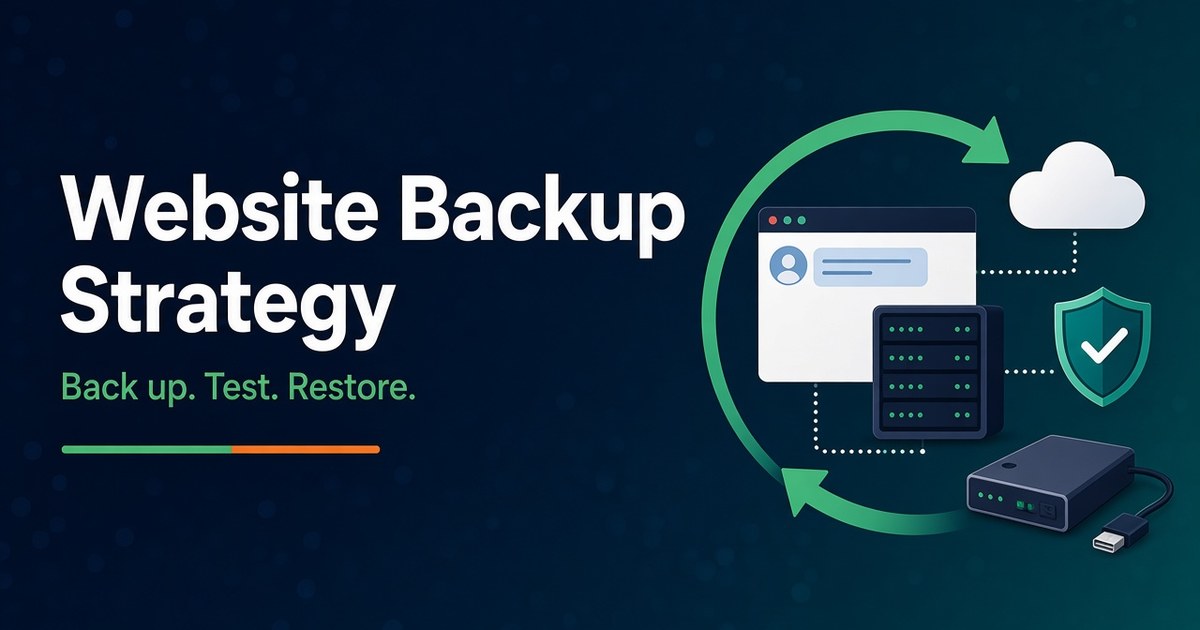
Short answer: A website backup strategy is only as good as your last successful restore. Decide how much data you can afford to lose and how long you can be offline. Back up the files and the database together, on a schedule that matches how often the site changes. Keep at least three copies, and make sure one of them sits outside your hosting account, ideally offline or impossible to change. Keep enough history to go back past the point where a hack started. Then test a restore before you ever need one. Your host’s daily backups are a strong layer, but they shouldn’t be the only one.
This guide is written for small business owners and the people who look after their sites. It covers what a complete website backup includes and how to set recovery targets. It also explains how the 3-2-1 rule works for a hosted site, how long to keep backups, how to run a restore drill, and the order to follow when you actually have to recover. The advice is drawn from Canadian Centre for Cyber Security, CISA, NIST, WordPress.org and cPanel documentation, all checked on November 2, 2026.
A website backup strategy is the set of decisions about what you copy, how often, where the copies live, how long you keep them, and who can reach them. A recovery plan is the other half: the written steps, owners and time targets for turning one of those copies back into a working website.
Most backup advice stops at the first half. It says “turn on automated backups” and moves on. In practice, recoveries fail for reasons that have nothing to do with whether a backup existed:
The Canadian Centre for Cyber Security frames backups in terms of two goals: availability, meaning people can keep reaching your information, and recovery, meaning you can restore systems and limit the information, time and money lost to downtime (Cyber Centre, ITSAP.40.002). A strategy that only covers copying serves the first goal at best. The rest of this guide covers both.
A complete website backup includes everything you would need to rebuild the site on a fresh server and have it behave exactly as it did before. For most sites that means more than one thing.
WordPress’s own documentation makes the most common gap explicit. Backing up your WordPress files does not back up the database, because the database lives in a separate system (usually MySQL or MariaDB). You need both to fully restore a typical WordPress site (WordPress.org, Backups). The same is true of most content management systems and online stores.
| Component | What it contains | How it’s usually captured | Often missed because |
|---|---|---|---|
| Site files | Core software, themes, plugins, uploads and media, custom code | Control panel backup, file transfer (SFTP), backup plugin | Uploads folders get excluded to save space |
| Database | Pages, posts, products, orders, users, settings, comments | Database export (.sql), control panel or plugin backup | “Download the site folder” doesn’t include it |
| Configuration files | wp-config.php or equivalent, .htaccess, php.ini overrides | Included in a full file backup | Stored above the web root or edited by hand on the server |
| Mailboxes, forwarders, filters | cPanel full backup; forwarders and filters as partial backups | Email is often treated as separate from “the website” | |
| DNS records | A, MX, TXT (SPF, DKIM, DMARC), CNAME records | Export or screenshot from your DNS provider | Lives at the registrar or DNS host, not on the web server |
| Scheduled tasks and server settings | Cron jobs, PHP version, redirects, firewall rules | Notes or screenshots, or a server snapshot on a VPS | Not files, so file backups don’t capture them |
| Data held by other services | Payment records, form entries, newsletter lists, CDN settings | Each service’s own export | It isn’t on your server at all |
Two items belong in your plan but not in the backup file itself. Keep credentials for the hosting account, registrar, DNS and backup storage in a password manager, not in a text file inside the site. And keep a list of paid plugin and theme licences, so a rebuild doesn’t stall on a key you can’t find.
cPanel’s Backup Wizard shows how these pieces split up on most Canadian shared hosting. A full backup is a single .tar.gz archive of the account. Partial backups are separate downloads for the home directory, MySQL databases, and email forwarders and filters. A home directory backup includes your public_html files and the email for your domains (cPanel Docs, Backup Wizard).
Before you choose tools or schedules, write down two numbers. NIST SP 800-34 defines them:
CISA’s backup guidance for small and medium businesses tells owners to use scheduled recovery tests to refine both numbers until they match business needs (CISA, Back Up Business Data). Your RPO drives backup frequency. Your RTO drives where you store backups and how restores work, because a restore that depends on downloading a large archive over a slow office connection can’t meet a two-hour target.
The table below gives starting points, not rules. Adjust them to what a lost day or a lost hour actually costs you.
| Site type | How often content changes | Reasonable starting RPO | Reasonable starting RTO | What that implies |
|---|---|---|---|---|
| Brochure site, a few pages | Monthly or less | 1 week | 1-2 business days | Daily host backups plus a manual copy after every edit |
| Blog or news site | Daily | 24 hours | Same day | Daily automated backups, plus one before every update |
| Lead-generation site with forms | Daily submissions | 24 hours, with form entries also emailed or synced elsewhere | A few hours | Daily backups, plus a second home for submissions |
| Online store or booking site | Every hour | 1 hour or less for orders | 1-4 hours | Frequent database backups, with orders reconcilable from the payment processor |
| Membership or community site | Constantly | Under 1 hour | 1-4 hours | Frequent database backups, plus a tested, documented restore runbook |
For stores, remember that the payment processor keeps its own transaction records. If a restore loses a few hours of orders, those records let you rebuild them. That’s part of your real RPO, so check you can export them before you need to.
The 3-2-1 rule is the most widely cited backup guideline. CISA puts it simply: keep 3 copies of important files, on 2 different types of storage media, with 1 copy stored off-site (CISA, Back Up Business Data). WordPress’s handbook gives the same advice in its own words: keep at least three backups, in different places and on different media, in case one is corrupted or lost (WordPress.org, Backups).
For a site on shared, managed WordPress or VPS hosting, the three copies usually look like this:
The third copy is the one most small sites skip, and it’s the one that matters most in a ransomware or account-takeover incident. The Cyber Centre recommends keeping at least one backup offline. Offline (or “cold”) backups stay disconnected from your systems until needed, so they’re unaffected by many threats, ransomware included, that can compromise everything on a network (Cyber Centre, ITSAP.40.002). Its baseline controls for small and medium organizations go further: backups should be encrypted and accessible only to the people responsible for testing and restoring them. Long-term backups, such as weekly ones, must be stored offline, while frequent daily backups may stay online (Cyber Centre, Baseline cyber security controls).
CISA’s #StopRansomware Guide explains why. Many ransomware variants try to find and delete or encrypt any backups they can reach, which makes restoring impossible unless the ransom is paid (CISA, #StopRansomware Guide). In a 2024 advisory, CISA and its partners recommended that backup data be encrypted and immutable, meaning it can’t be altered or deleted (CISA, Akira ransomware advisory AA24-109A).
For a small website, “offline or immutable” doesn’t need enterprise hardware. Any of these meets the spirit of the guidance:
The test is simple. If an attacker had your website admin password, or full control of your hosting account, could they reach that copy and destroy it? If the answer is yes, it isn’t your third copy.
Not everything that sounds like a backup works like one. Redundant storage (RAID) keeps a server running when a disk fails. But it mirrors every change instantly, including deletions, corruption and malware. 4GoodHosting’s own Linux VPS hosting page puts it plainly: RAID provides storage redundancy and is not a substitute for backups.
| Protection layer | Disk failure | Bad update or accidental deletion | Hack found weeks later | Hosting account compromised or lost | Regional outage |
|---|---|---|---|---|---|
| RAID storage | Yes | No | No | No | No |
| Host’s daily backups | Yes | Yes, if the restore point is recent enough | Only if retention reaches back far enough | Possibly not | Yes, if stored off-site |
| VPS snapshot | Yes | Yes | Only if old snapshots are kept | Possibly not | Depends on where it’s stored |
| Backup plugin storing inside the site | No | Sometimes | Rarely | No | No |
| Plugin or script sending to off-site storage | Yes | Yes | If retention is long enough | Yes, if credentials are separate | Yes |
| Offline or immutable copy you control | Yes | Yes, though it may be older | Yes, if kept long enough | Yes | Yes |
A backup plugin that writes its archives into the site’s own folders is a weak layer. Those copies sit inside the thing being backed up, so whatever takes out the site usually takes them out too. p4e’s guide to WordPress hosting speed, security and backups covers this WordPress-specific trap in more detail. If you use a plugin, point it at external storage. 4GoodHosting’s roundups of WordPress backup plugins and why WordPress backups matter and how to do them compare common options.
Keep website backups long enough to reach a clean copy from before any problem you might find late. For most small business sites, that means daily restore points for at least the last week or two, plus older weekly and monthly copies. A short retention window is the most common reason a backup exists but can’t be used.
Hacks and data corruption are rarely discovered the day they happen. Google’s guide to recovering a hacked site tells owners to work out when suspicious activity first occurred, because that determines which backups might still be clean. It also says to check that a backup was created before the site was hacked before restoring it (web.dev, Identify the vulnerability; web.dev, Clean and maintain your site). CISA advises testing that you can roll data back at least seven days if needed (CISA, Back Up Business Data). That’s a floor, not a target.
A simple rotation works well for most sites:
Check your host’s retention rather than assuming it. 4GoodHosting’s help article on creating and restoring a cPanel backup says that retention for its nightly server backups can vary by plan, and asks customers to confirm current retention with support. That’s the right question to put to any provider.
Longer retention has a cost beyond storage. Backups contain everything the site holds: customer names, emails, order histories, sometimes account details. They’re subject to the same privacy safeguards as the live site, so encrypt them, restrict who can open them, and delete old copies on schedule.
Automation fixes the biggest weakness of manual backups, which is that people forget. But an automated job can fail silently for months. Build these checks into the setup:
For a database-only copy before a risky change, a phpMyAdmin export is quick. 4GoodHosting has a walkthrough on backing up your database with phpMyAdmin, and WordPress documents the same process in Backing Up Your Database.
A backup you have never restored is an assumption. NIST’s Cybersecurity Framework 2.0 lists the expectation as a single outcome: “Backups of data are created, protected, maintained, and tested” (PR.DS-11). It adds that backup integrity should be verified before a restore (RC.RP-03), and that restored systems should be checked before normal operations resume (RC.RP-05) (NIST, Cybersecurity Framework 2.0). The Cyber Centre recommends testing recovery from backup on a routine basis, and CISA says to test that your team can restore data both fully and partially (Cyber Centre, ITSAP.40.002; CISA, Back Up Business Data).
Run this drill every quarter, and after any change to hosting or backup tools:
The first drill is usually the most valuable, because it reveals the gaps: a database password nobody recorded, an archive too large to upload through the control panel, or a plugin licence tied to the old domain.
When something breaks, the urge is to hit “restore” straight away. For a simple mistake, like a bad plugin update caught within the hour, that’s often right. For anything involving a possible hack, slow down and follow an order. The steps below follow Google’s hacked-site recovery guidance and CISA’s ransomware response checklist (web.dev, Clean and maintain your site; CISA, #StopRansomware Guide).
Pause scheduled updates and deployments. If the site is hacked or is serving harmful content, take it offline or put up a maintenance page. For an outage of a day or two, Google recommends returning an informational error page with a 503 status code. Keep robots.txt crawlable, because a 503 on robots.txt blocks all crawling (Google Search Central, Temporarily pause or disable a website).
Was it a failed update, an accidental deletion, a database error, or a compromise? Check access logs, recent logins and file modification dates. The time the problem started tells you which restore points are safe to use.
Before restoring over a hacked site, Google’s guidance is to take a full copy of the compromised files and database first (web.dev, Clean and maintain your site). You’ll need it to find out how the attacker got in, and it may hold recent orders or posts you want to recover by hand.
Use the newest backup taken before the problem began. If the timing is unclear, restore an older copy to staging first and inspect it. A restore point that already contains the backdoor will just put you back where you started.
WordPress documents the usual order: restore the files first, then import the database. If database credentials changed during the move, update wp-config.php to match (WordPress.org, Backups). On cPanel, you can restore partial backups (home directory, databases, email forwarders and filters) yourself through the Backup Wizard. But cPanel’s documentation notes that a full backup can’t be restored automatically from cPanel. That function is only available in WHM, so you’d ask your hosting provider (cPanel Docs, Backup Wizard). Know which kind of restore your host lets you do yourself before you need one.
For a single deleted page template or image, a whole-site restore is overkill. Restore just that file or directory, through your host’s file restoration tool if it offers one, or from a backup archive.
If the cause was a compromise, restoring alone isn’t enough. Google’s guidance is to install all available updates and patches after restoring, remove software you no longer use, and change passwords (web.dev, Clean and maintain your site). Rotate every credential: hosting, CMS admin accounts, database, SFTP, API keys and the backup storage login.
Run the same checks as your restore drill. Clear any page cache and CDN cache. Confirm the site returns normal 200 responses and that forms, payments and emails work.
Compare orders, bookings, sign-ups and form entries against the payment processor, email notifications and third-party tools for the gap between the restore point and the incident. Re-enter or contact customers as needed.
Organizations subject to PIPEDA must keep records of all breaches of security safeguards. If personal information was involved and the breach creates a real risk of significant harm, they must also report it to the Office of the Privacy Commissioner of Canada and notify the people affected (OPC, Mandatory reporting of breaches of security safeguards). Restoring from a backup doesn’t remove that obligation. Finally, record what happened, how long recovery took and what you’ll change. CISA lists documenting lessons learned as part of post-incident recovery (CISA, #StopRansomware Guide).
If your site runs on 4GoodHosting, this is what the company’s live pages said on November 2, 2026. Confirm the current details for your own plan with support.
Whoever hosts your site, ask these questions and keep the answers with your recovery plan:
Fill this in once, store a copy outside the website (printed, or in a shared drive), and review it every time you run a restore drill.
| Item | Your answer |
|---|---|
| Site owner and backup owner (names) | |
| RPO and RTO | e.g. 24 hours / 4 hours |
| What’s backed up | Files, database, email, DNS export, cron and server notes |
| Copy 1: host backups | Frequency, retention, how to request a restore |
| Copy 2: off-account copy | Service, frequency, retention, who holds the login |
| Copy 3: offline or immutable copy | Where it’s stored, how often it’s refreshed |
| Before-change backups | Who takes them, and where they’re saved |
| Where credentials are stored | Password manager vault name |
| Last restore drill | Date, time taken, issues found |
| Incident contacts | Host support, developer, payment processor, privacy lead |
Back up as often as your content changes, and always before updates or major edits. For a brochure site, daily host backups plus a manual copy after edits are usually enough. For a store or booking site, the database needs backing up far more often than daily, because every order placed after the last backup is at risk.
They’re a valuable layer, often the fastest way to recover, but they shouldn’t be your only copy. Host backups may not reach back far enough to predate a late-discovered hack, and they may be out of reach if your hosting account is compromised, suspended or closed. Keep at least one copy that you control outside the hosting account.
A full backup copies everything. A differential backup copies what has changed since the last full backup. An incremental backup copies only what changed since the most recent backup of any kind. Incrementals are fast and small, but restoring one means processing each increment in sequence, which takes longer (Cyber Centre, ITSAP.40.002).
They solve different problems, so many sites use both. Host backups work at the server or account level and don’t depend on the website running. A plugin can send copies to storage you control and run on its own schedule. If you use a plugin, make sure it stores archives off the server, not inside the site’s own folders.
Yes, if they’re reachable. Ransomware often goes looking for backups to delete or encrypt, and a backup taken after an infection will contain the infection. Keep at least one copy offline or immutable, keep enough history to reach a clean point, and scan or inspect a restore point in staging before trusting it.
Restore one. Run a restore drill to a staging site every quarter. Time it, check the newest content, and test the forms and checkout. A successful backup job only proves a file was written, not that it can bring your site back.
About the author: This article was written by the team at 4GoodHosting, a Canadian web hosting company operating since 2002 with servers in Vancouver and Toronto. This article is a guest contribution to P4 Emachines.
 November 3, 2026Canadian Hosting
 November 2, 2026Business, Ecommerce
 November 2, 2026Hosting, Managed WordPress Hosting Canada, WordPress
 November 2, 2026Business, SEO
 November 2, 2026Hosting, Security & Compliance, WordPress
 November 2, 2026Business, WordPress